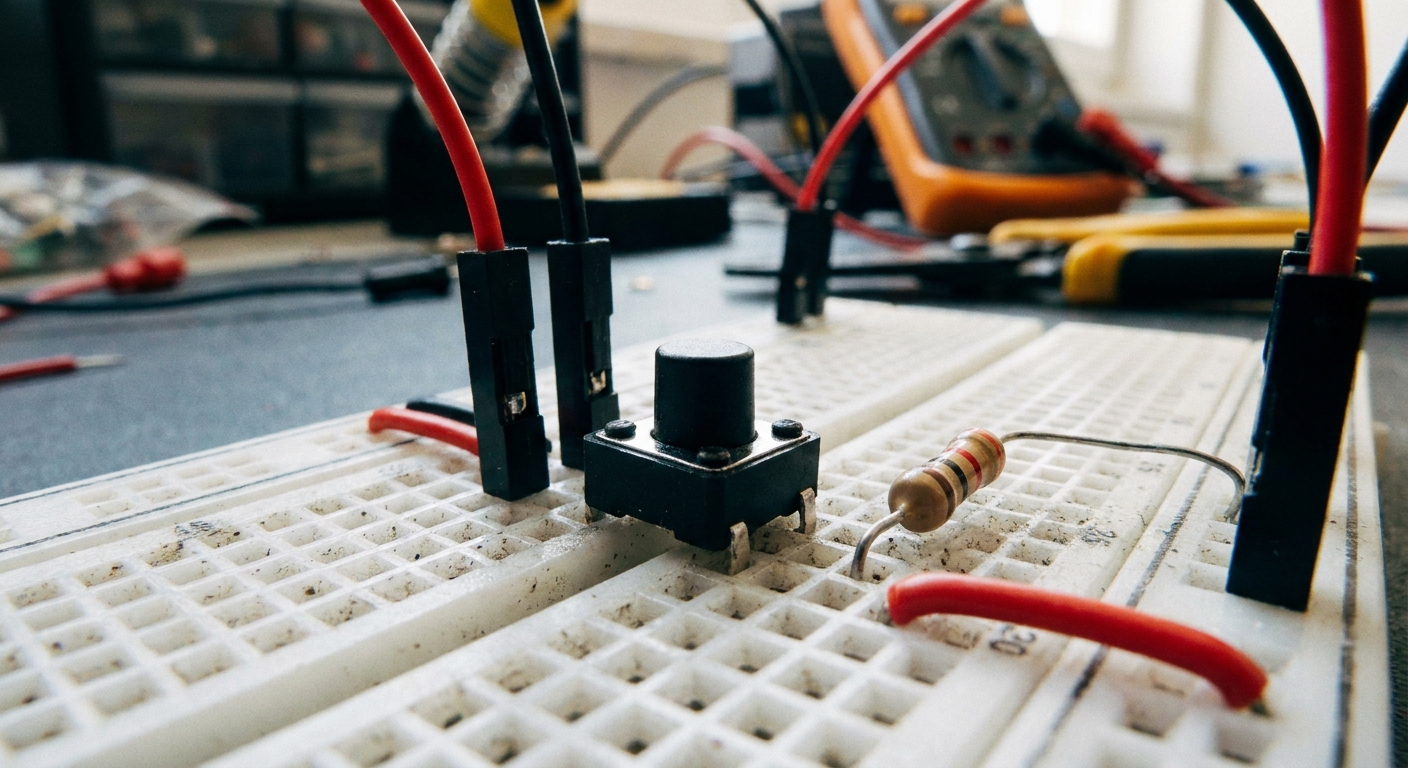
You’ve wired up a simple pushbutton, but something weird is happening. The LED flickers randomly. It turns on when your hand waves near it, as if your Arduino is a terribly built Theremin. You press the button once, and it registers three times. You are fighting the twin demons of electronics: Floating Pins and Switch Bounce. It’s time to tie those pins down before they float away entirely.
Demon 1: The Floating Pin
Microcontrollers are incredibly sensitive. If a digital pin is not explicitly connected to HIGH (5V) or LOW (GND), it acts like a tiny antenna. It will pick up static electricity from the air, your fingers, or nearby fluorescent lights, causing the reading to wildly fluctuate between HIGH and LOW. This is called a “floating pin.”
The Hardware Fix (Pull-up Resistor): Wire a 10k resistor from your digital pin to the 5V rail. This ensures the pin is “pulled” up to 5V by default. When you press the button (which should be wired to GND), the current easily flows to ground, dropping the pin to 0V.
The Software Fix (The Pro Way):
Arduinos actually have tiny pull-up resistors built right into the chip! You can activate them in code and skip the physical resistor entirely.
Change your setup code from:
pinMode(buttonPin, INPUT);
to:
pinMode(buttonPin, INPUT_PULLUP);
(Note: Because the pin is now pulled HIGH by default, a button press will read as LOW!)
Demon 2: Switch Bounce
Inside a tiny tactile button are two pieces of metal. When you press the button, those pieces of metal smack together. At a microscopic level, they literally “bounce” against each other a few times before settling. The Arduino is so fast that it reads these bounces as multiple button presses in a single millisecond.
The Fix (Debouncing): We fix this in software by telling the Arduino to ignore rapid changes. When the button state changes, we start a timer (usually 50 milliseconds). If the button is still pressed after 50ms, we accept it as a real, human press.
You can write this logic manually using millis(), or save yourself a headache by installing the excellent Bounce2 library from the Arduino Library Manager!