Fixing ‘Port Not Found’ on Arduino Clones (CH340 Driver Issue)
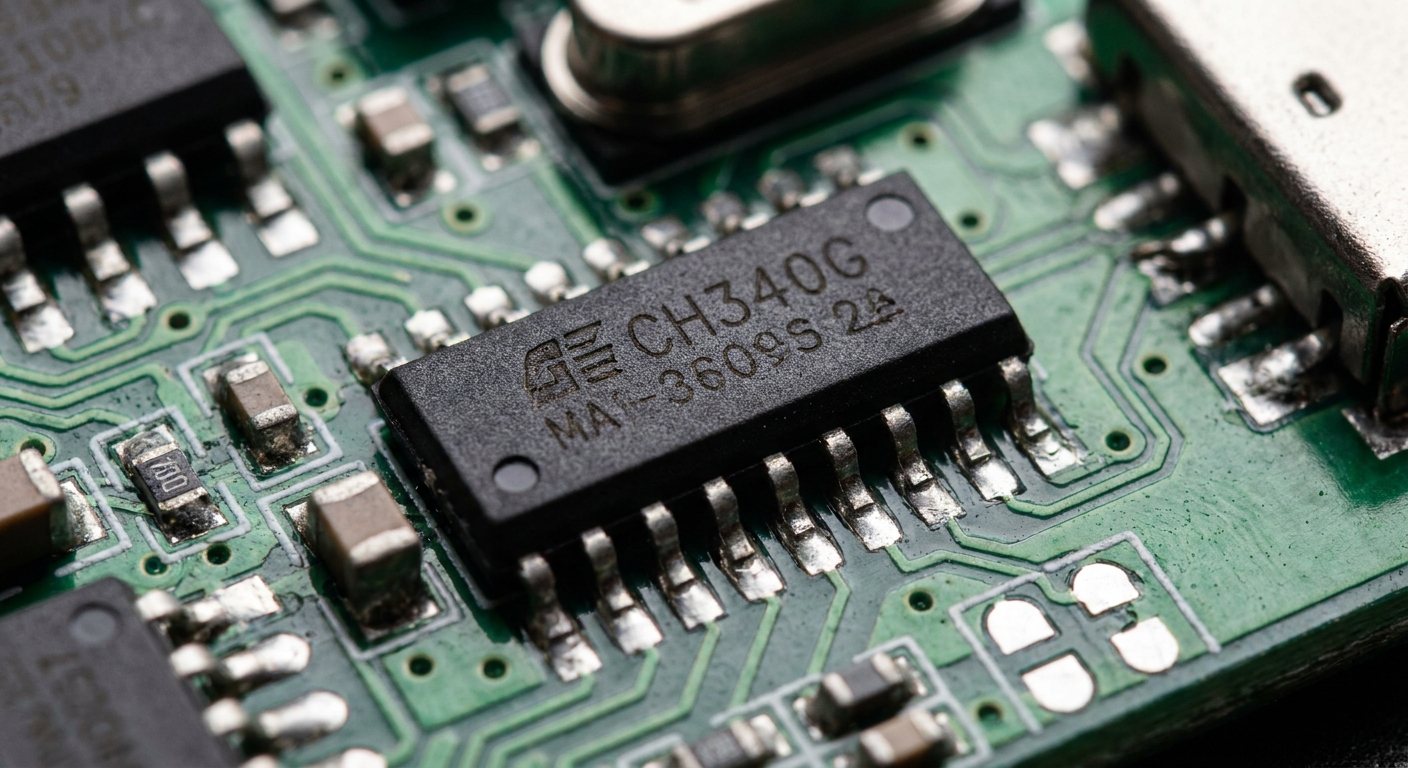
You just bought a 5-pack of Arduino Nanos for $12. You’re feeling like a financial genius. You plug one into your computer, open the Arduino IDE, go to select the COM port, and… nothing. It’s grayed out. Your computer completely ignores it. You swap cables. You restart your PC. You blow on the USB port like it’s a Nintendo cartridge. Still nothing.
Congratulations, you’ve just met the CH340G USB-to-Serial chip.
Don’t throw the boards away! They aren’t dead. They just speak a dialect of USB that your computer hasn’t bothered to learn yet. Here’s how to fix it.
The Problem: FTDI vs CH340
Official Arduino boards use an expensive, officially recognized chip (like an ATmega16U2 or FTDI chip) to translate the USB signal from your computer into the serial data the Arduino’s main brain understands. Your computer has drivers for these built-in.
Cheap clone boards cut costs by using the CH340 family of chips. They work perfectly fine, but Windows and macOS don’t usually include the drivers for them by default.
The Solution: Install the CH340 Drivers
To fix this, you just need to manually install the driver.
For Windows:
- Disconnect your Arduino.
- Search online for “CH340 Windows Driver” (SparkFun usually hosts a safe, clean copy).
- Download the
.zipor.exe. - Run the installer (usually named
CH341SER.EXE). Click “Install”. - Plug your Arduino back in. Your Device Manager should now show a new “USB-SERIAL CH340 (COM X)” device under “Ports (COM & LPT)”.
For macOS:
Note: Modern macOS (Catalina and later) actually includes a built-in CH340 driver, but it can sometimes conflict with older versions or not trigger properly.
- If it doesn’t show up as
/dev/cu.usbserial-XXXX, you may need the official driver. - Search for “WCH CH340 Mac Driver”.
- Download the
.pkgfile, open it, and follow the installation steps. - Important: macOS will likely block the installation in “Security & Privacy”. You must go to System Preferences -> Security & Privacy -> General, and click “Allow” for the software from “QinHeng Electronics” or similar.
- Restart your Mac.
Still Not Working?
If you installed the driver and the port is still missing, check the number one culprit: Your USB Cable.
Many cheap micro-USB and USB-C cables are “charge-only” cables. They have the power wires inside, but literally lack the data wires. Toss that cable in the garbage so it doesn’t trick you again, and grab a known-good data cable (like the one that came with your phone).
Now get back to making things blink!