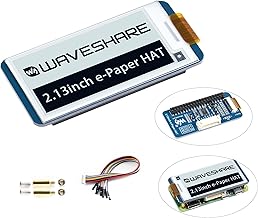
Today, we’re playing with black magic: E-Paper displays. If you’ve used an e-reader, you know what this is. Unlike greedy LCDs that constantly suck power, E-Paper displays only use electricity when changing the screen. Unplug it, and the image stays there forever. It’s like an Etch A Sketch, but for nerds.
Why Use E-Paper?
E-Paper displays are perfect for specific types of maker projects. Here are a few reasons why you might choose one for your next build:
- Zero Power Retention: They use absolutely zero power to hold a static image, making them the ultimate choice for battery-powered or solar-powered IoT devices.
- Incredible Readability: Because they reflect ambient light rather than emitting it, they have paper-like contrast and are perfectly readable even in direct, bright sunlight.
- Low Eye Strain: They emit no harsh light, which gives them that comfortable “real paper” feel.
Of course, they do have a catch: the refresh rate. E-Paper takes a second or two (and sometimes flashes black and white) to update. So, while it’s terrible for video or fast animations, it’s brilliant for weather stations, smart calendars, or digital name badges.
Getting Started: A Quick Code Example
To use an E-Paper display with an Arduino or ESP32, you’ll typically use a popular library like GxEPD2. Here’s a quick snippet showing how you might initialize the display and write some simple text to it:
#include <GxEPD2_BW.h>
#include <Fonts/FreeMonoBold9pt7b.h>

// Initialize your specific display model (example for a 1.54" SPI display)
GxEPD2_BW<GxEPD2_154_D67, GxEPD2_154_D67::HEIGHT> display(GxEPD2_154_D67(/*CS=*/ 5, /*DC=*/ 0, /*RST=*/ 2, /*BUSY=*/ 15));

void setup() {
  Serial.begin(115200);
  display.init(115200); // initialize the display

  // Set up the font and text color
  display.setRotation(1);
  display.setFont(&FreeMonoBold9pt7b);
  display.setTextColor(GxEPD_BLACK);

  // Start the drawing routine
  display.setFullWindow();
  display.firstPage();
  do {
    display.fillScreen(GxEPD_WHITE);
    display.setCursor(10, 30);
    display.print("Hello, E-Paper!");
  } while (display.nextPage());

  // The display now holds the image!
  // At this point, you could put the microcontroller into deep sleep.
}

void loop() {
  // Nothing to do here for a static display
}
With this basic setup, your microcontroller can wake up, update the screen with the latest sensor data or weather forecast, and then go entirely to sleep. The screen will keep displaying your data, keeping your battery running for months or even years!
Hardware You’ll Need
To follow along with this lesson, you’ll need the following components: