Lesson 140: Painting with Light - Using WS2812B Addressable LEDs (NeoPixels)
Standard LEDs are fine, but wiring up dozens of them to make an animation is a fast track to a tangled nightmare of resistors and regret.
Enter the WS2812B Addressable LED, often called “NeoPixels.” They have a microscopic brain inside every single LED, meaning you can string hundreds of them together and control them all with one single wire. It feels like cheating, and it is absolutely glorious.
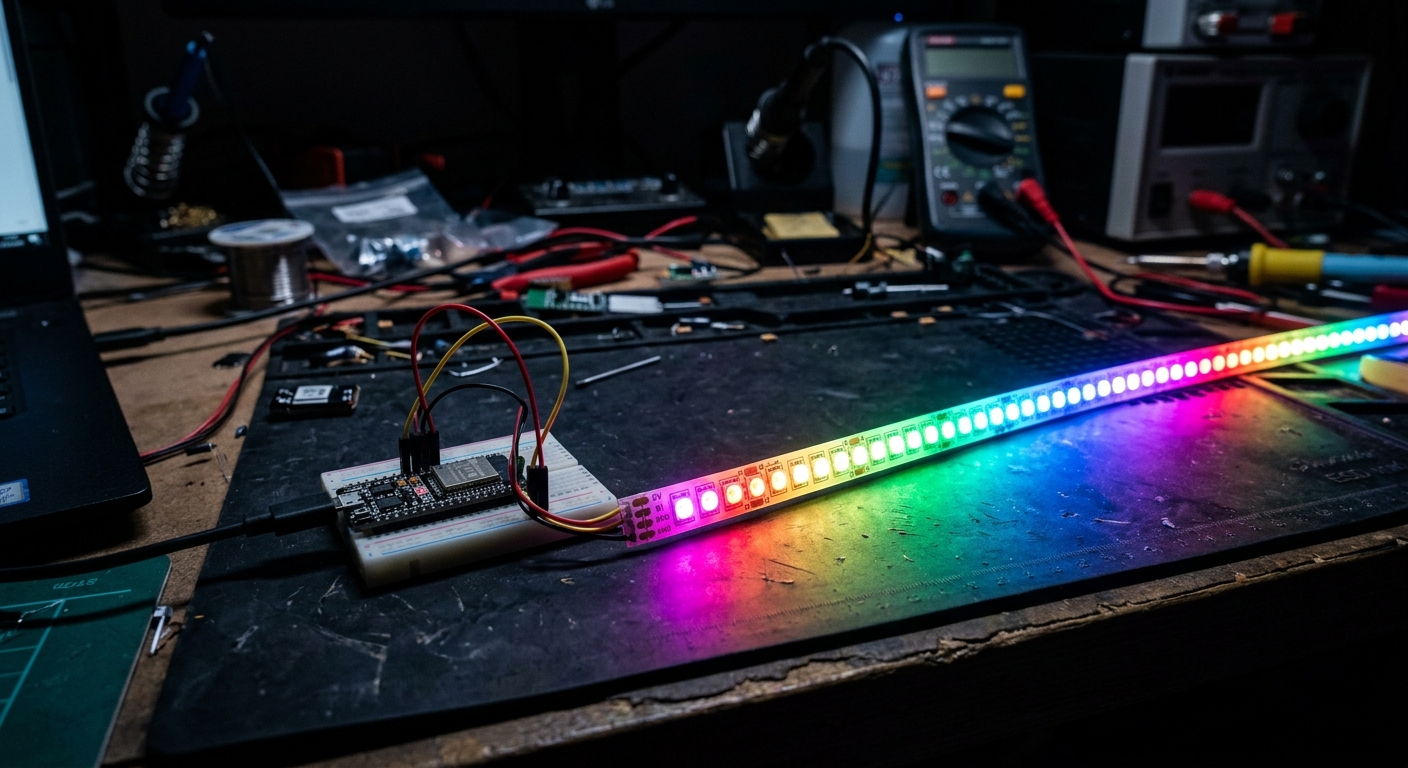 Addressable LEDs allow for incredibly complex and colorful lighting animations.
Power Considerations
Before we write code, we need to talk about power. Addressable LEDs are incredibly bright and draw a lot of current. A single WS2812B LED at full white brightness can draw up to 60 milliamps (mA).
If you have a strip of 60 LEDs, that’s 60 * 60mA = 3600mA (or 3.6 Amps!).
Your Arduino’s 5V pin can only safely provide around 400-500mA. If you try to power a long strip of WS2812B LEDs directly from your Arduino, you will burn out your board’s voltage regulator.
For strips longer than 8-10 LEDs, you must use an external 5V power supply.
Need the parts? Grab the essentials on Amazon:
Wiring the WS2812B Strip
Let’s assume we are safely powering a strip of 30 LEDs using an external power supply.
- Power: Connect the 5V and GND of the LED strip directly to your external 5V power supply.
- Common Ground: You must connect the GND of the power supply to the GND of your Arduino. If they don’t share a ground, the data signals won’t be understood.
- Data Pin: Connect the Data In (DIN) wire of the LED strip to digital pin 6 on the Arduino. (It is highly recommended to place a 300 to 500 Ohm resistor between the Arduino pin and the DIN wire to protect the first LED from voltage spikes).
Installing the FastLED Library
There are two main libraries for controlling these LEDs: Adafruit NeoPixel and FastLED. In this lesson, we will use FastLED, as it is highly optimized and fantastic for complex animations.
- Open the Arduino IDE.
- Go to
Sketch > Include Library > Manage Libraries... - Search for FastLED and install it.
Example Code: The Cylon Scanner
Let’s create a classic animation: a single red dot bouncing back and forth along the strip.
#include <FastLED.h>

// How many LEDs are in your strip?
#define NUM_LEDS 30

// Which pin is connected to the data line?
#define DATA_PIN 6

// Define the array of LEDs
CRGB leds[NUM_LEDS];

void setup() {
  // Tell FastLED about our setup
  FastLED.addLeds<WS2812B, DATA_PIN, GRB>(leds, NUM_LEDS);

  // Set global brightness (0-255).
  // Keep it low while testing to save power!
  FastLED.setBrightness(50);
}

void loop() {
  // Move the dot forward
  for(int i = 0; i < NUM_LEDS; i++) {
    leds[i] = CRGB::Red;      // Set the current LED to red
    FastLED.show();           // Update the strip
    delay(30);                // Wait a moment
    leds[i] = CRGB::Black;    // Turn it off before moving to the next
  }

  // Move the dot backward
  for(int i = NUM_LEDS - 1; i >= 0; i--) {
    leds[i] = CRGB::Red;
    FastLED.show();
    delay(30);
    leds[i] = CRGB::Black;
  }
}
How It Works
- The Array (
CRGB leds[NUM_LEDS];): We create an array that acts like a map of our strip.leds[0]is the first LED,leds[1]is the second, and so on. - Assigning Colors: We can assign colors using predefined names like
CRGB::RedorCRGB::Blue, or we can set exact RGB values likeCRGB(255, 0, 0). FastLED.show(): Similar to the OLED display we learned about in Lesson 139, updating theledsarray doesn’t actually change the physical lights. The lights only update when you callFastLED.show(). This allows you to set up complex patterns across the entire strip and push them all out instantly.- Brightness:
FastLED.setBrightness()is incredibly useful. It acts as a master dimmer, allowing you to test code without blinding yourself or drawing too much power from your supply.
Addressable LEDs open up a massive world of creative possibilities. From here, you can explore rainbow gradients, reactive music visualizers, or custom holiday lighting!