Lesson 114: Digital Inputs (Reading a Pushbutton)
Making LEDs blink is fun for about five minutes. But unless you’re building a very tiny, very boring disco, a microcontroller’s real power comes from its ability to react to the world. To do that, it needs inputs. Otherwise, it’s just sitting there, ignoring you, much like my cat.
Today, we’re going to drag the Arduino kicking and screaming into interactivity by teaching it to read a digital signal from a tactile pushbutton. Finally, you get to push its buttons for a change.
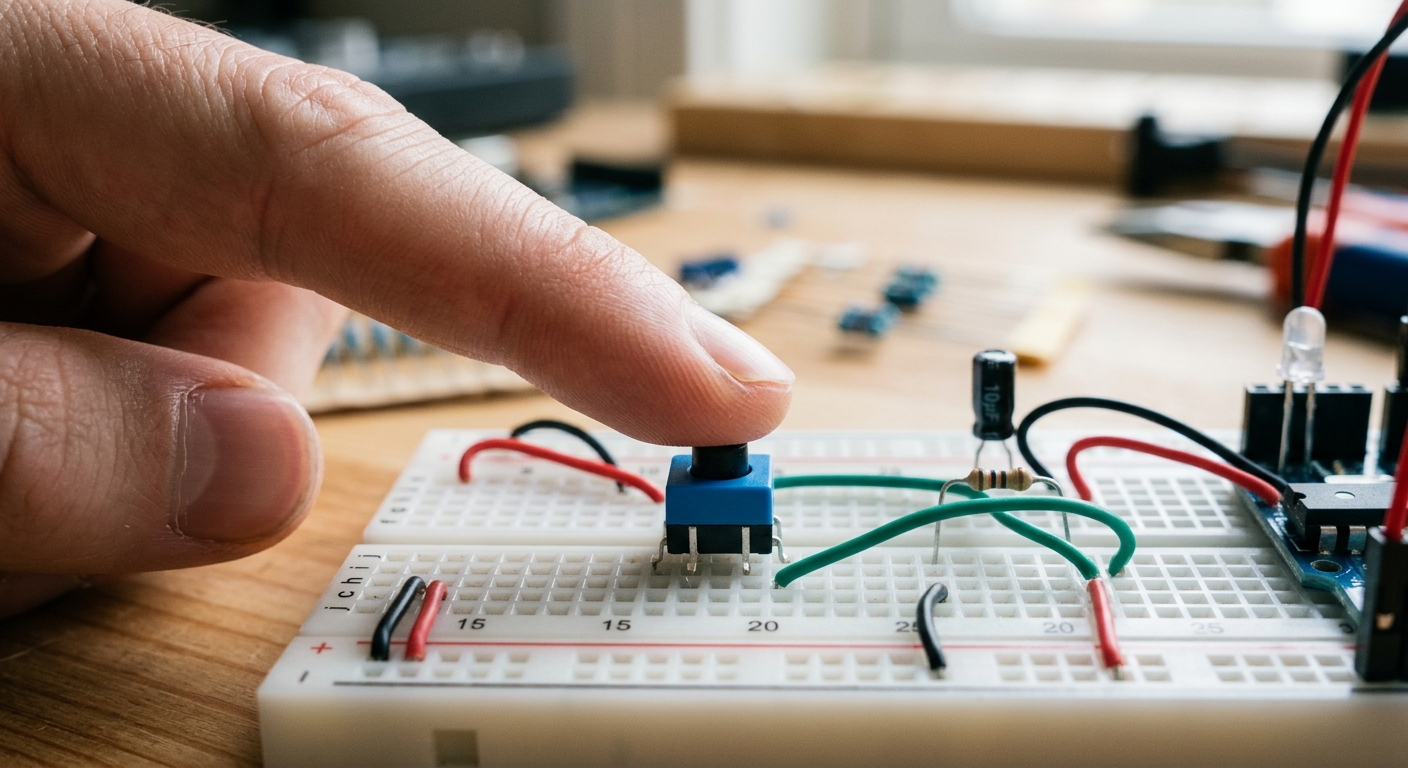 A simple tactile pushbutton allows user input.
Input vs Output
When a pin is configured as an OUTPUT, the Arduino sends 5V out.
When a pin is configured as an INPUT, the Arduino “listens” to the pin to see if 5V is being applied to it from the outside.
If it detects ~5V, it reads as HIGH. If it detects ~0V (Ground), it reads as LOW.
The Floating Pin Problem
If you connect a wire to an input pin and leave the other end dangling in the air, what will the Arduino read?
It will actually read random noise! The pin acts like a tiny antenna, picking up static electricity and radio waves. It will rapidly fluctuate between HIGH and LOW. This is called a floating pin.
To fix this, we use a Pull-down Resistor.
The Circuit
- Connect a 5V pin on the Arduino to one side of the pushbutton.
- Connect the other side of the pushbutton to Digital Pin 2.
- The crucial step: Connect a 10k-ohm resistor from Digital Pin 2 to GND.
Now, when the button is not pressed, Pin 2 is pulled down to GND through the resistor. It reads a solid, reliable LOW. When you press the button, 5V floods straight into Pin 2. Electricity takes the path of least resistance (ignoring the 10k resistor to ground), and the Arduino reads a solid HIGH.
The Code
Let’s write a script that turns on the onboard LED (Pin 13) when the button (Pin 2) is pressed.
int buttonPin = 2;
int ledPin = 13;
int buttonState = 0; // Variable to hold the reading

void setup() {
  pinMode(ledPin, OUTPUT);
  pinMode(buttonPin, INPUT); // Set the button pin to listen!
}

void loop() {
  // Read the state of the pushbutton value:
  buttonState = digitalRead(buttonPin);

  // Check if the pushbutton is pressed.
  // If it is, the buttonState is HIGH:
  if (buttonState == HIGH) {
    // turn LED on:
    digitalWrite(ledPin, HIGH);
  } else {
    // turn LED off:
    digitalWrite(ledPin, LOW);
  }
}
digitalRead()
The function digitalRead(pin) returns either HIGH or LOW depending on the voltage present at that pin. We store that result in our buttonState variable.
[Need a variety of buttons for your control panels? Check out this Tactile Button Assortment.]
In Lesson 117, we’ll dive deeper into that if/else logic!